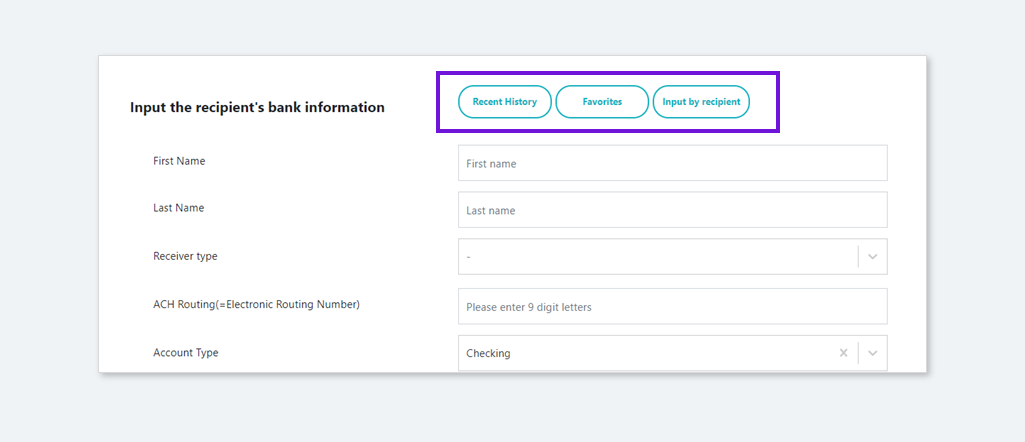
You can call the previous recent transaction information from the 'Recent History', register the 'Favorites' or send a link to the recipient to let the recipient inputs their own bank information when creating a transaction.
[Recent History]
* Only succeeded transactions are shown.
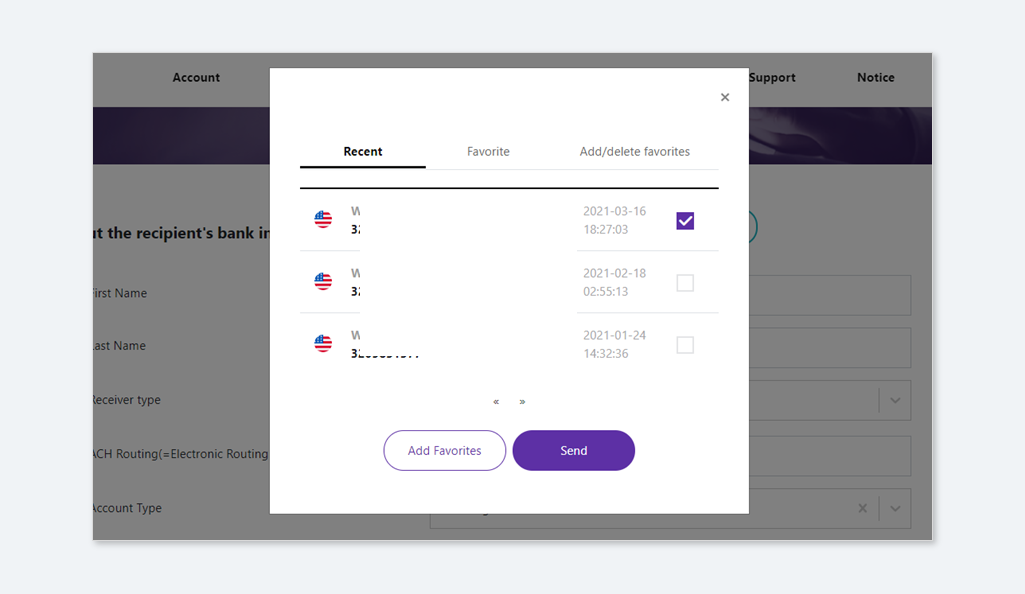
① You can add the recently completed transaction to the 'Favorite'.
② You can directly create a transaction from the 'Recent history' list.
[Favorite]
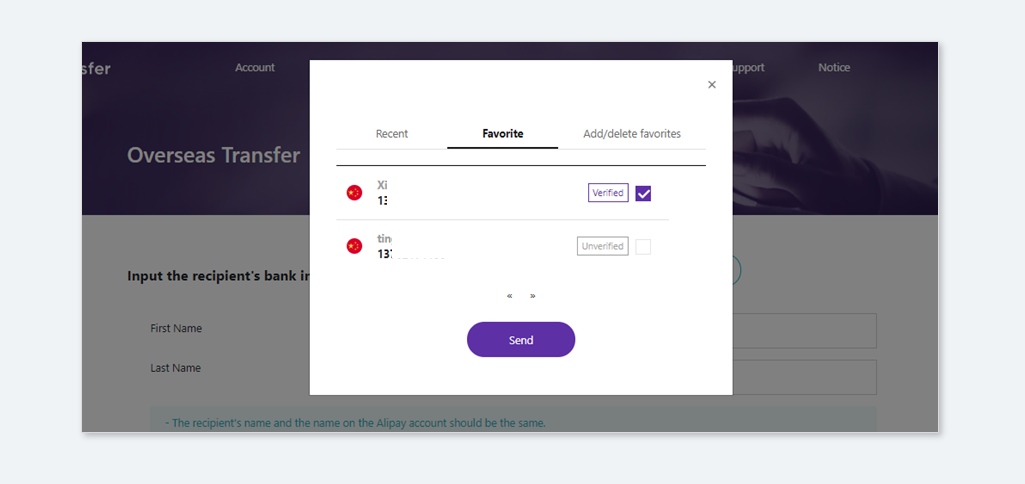
① You can check the registered favorite list.
② You can directtly create a transaction from the 'Favorite' list.
- Verified: The transaction is successfully completed.
- Failed: The transaction is failed.
- Unverified: The benenficary's information is registered, but haven't transferred yet to this beneficiary.
[Add/delete favorites]
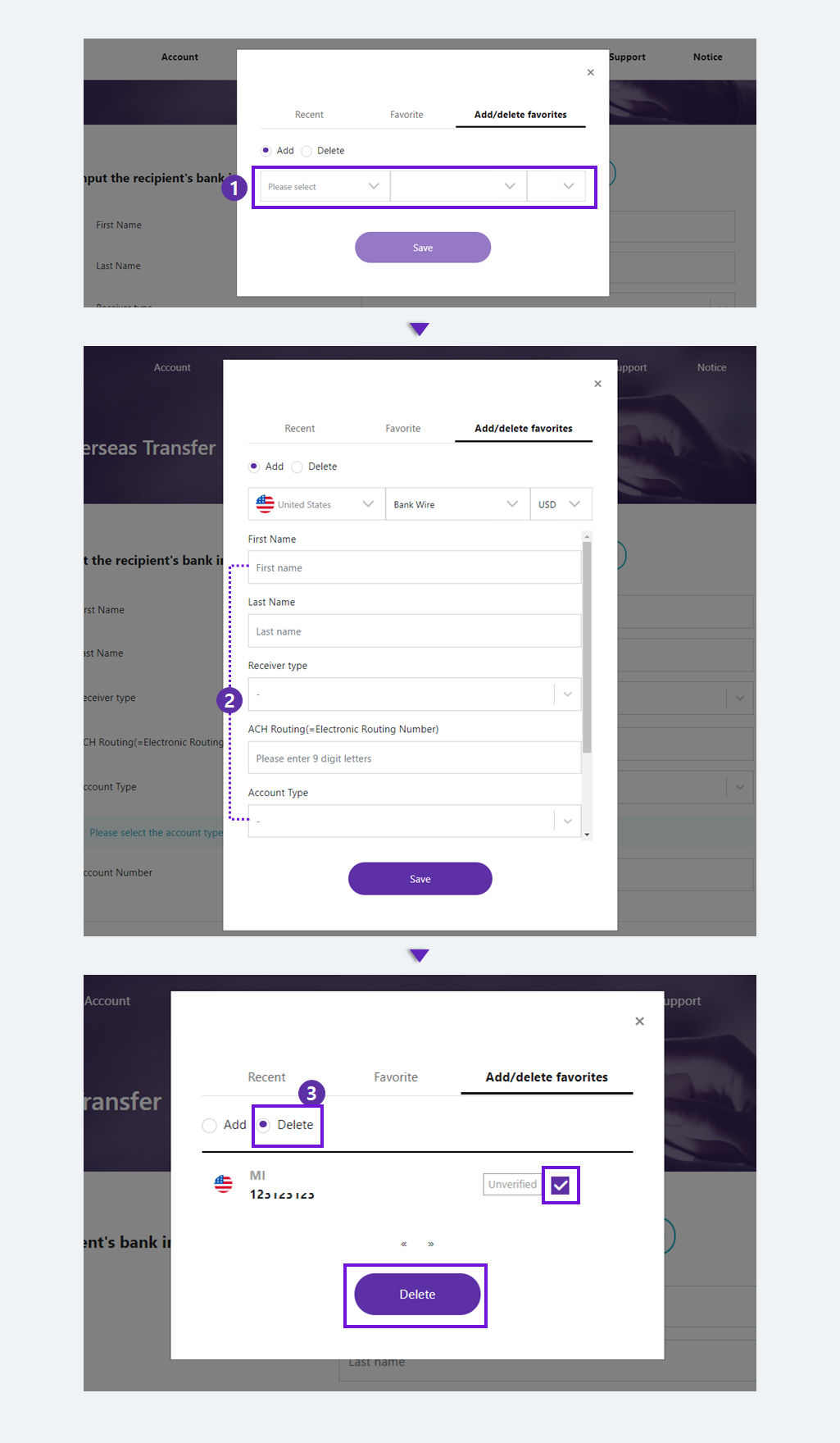
① Select the receiving country, currency, method.
② You can add the recipient's information once you save it.
③ You can delete the saved recipient's information as well.
[Input by recipient]
* If you're not clear on benenficairy's information, send the link to beneficiary and let them input their own bank information. Once you've successfully deliver the request to your benenficiary, you can check the status on the 'Account' page.
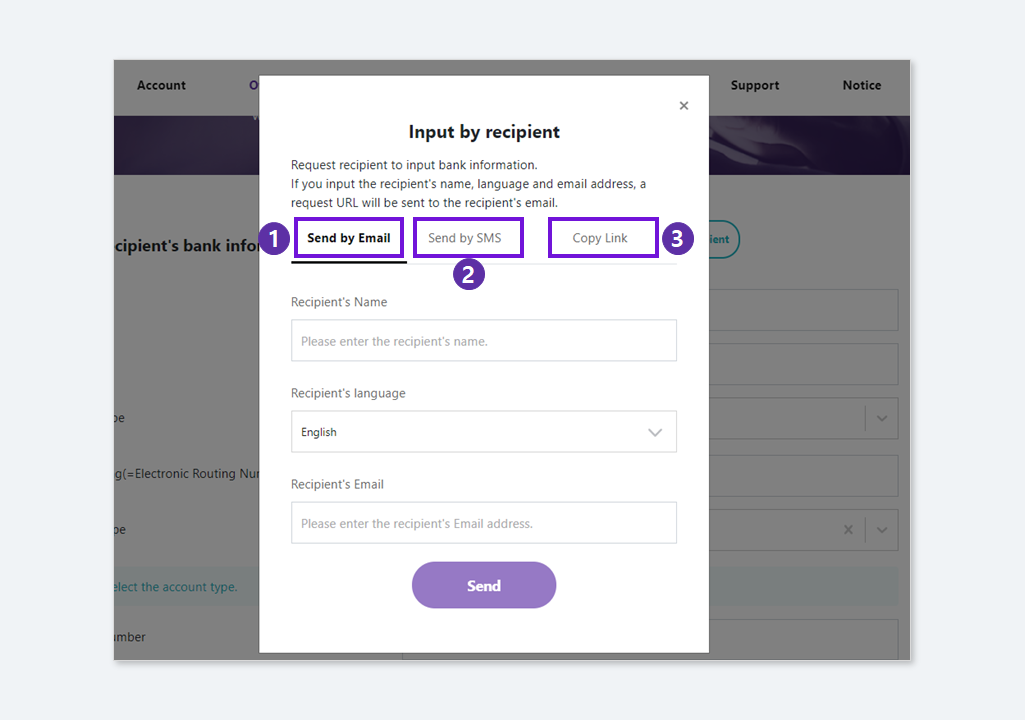
① Send by Email : Input the recipient's name, Recipient's language and Recipient's Email and click the 'Send' button.
② Send by SMS : Input the recipient's name, language and click the 'Send' button.
- The request link is sent to SENDER's mobile phone and you need to send this link to the benenficiary.
- This function is only available on PC.
③ Copy Link: Click the 'Send' button after input the recipient's name and select the language.
- Deliver the copied link to your benenficary.